How to use the calendar
The calendar shows every stylist side by side, by day or by week.
Where to find it Calendar, in the sidebar
Step by step
- Open Calendar and switch between Day and Week. Today jumps back to today.
- To book, click an empty slot or use New → New appointment. Search the client, pick the services and the stylist, and save. Add a 2nd Stylist for a shared appointment, or use Repeat for regular bookings.
- To move an appointment, drag it to the new time. If Auto-notify on reschedule is on, the client is told the new time.
- Click an appointment to open Quick Actions: mark it Confirmed, Arrived, Completed, No-Show or Cancelled — or go straight to Checkout.
- To keep time free (lunch, training), switch on Block Time in the appointment form — no client or service needed.
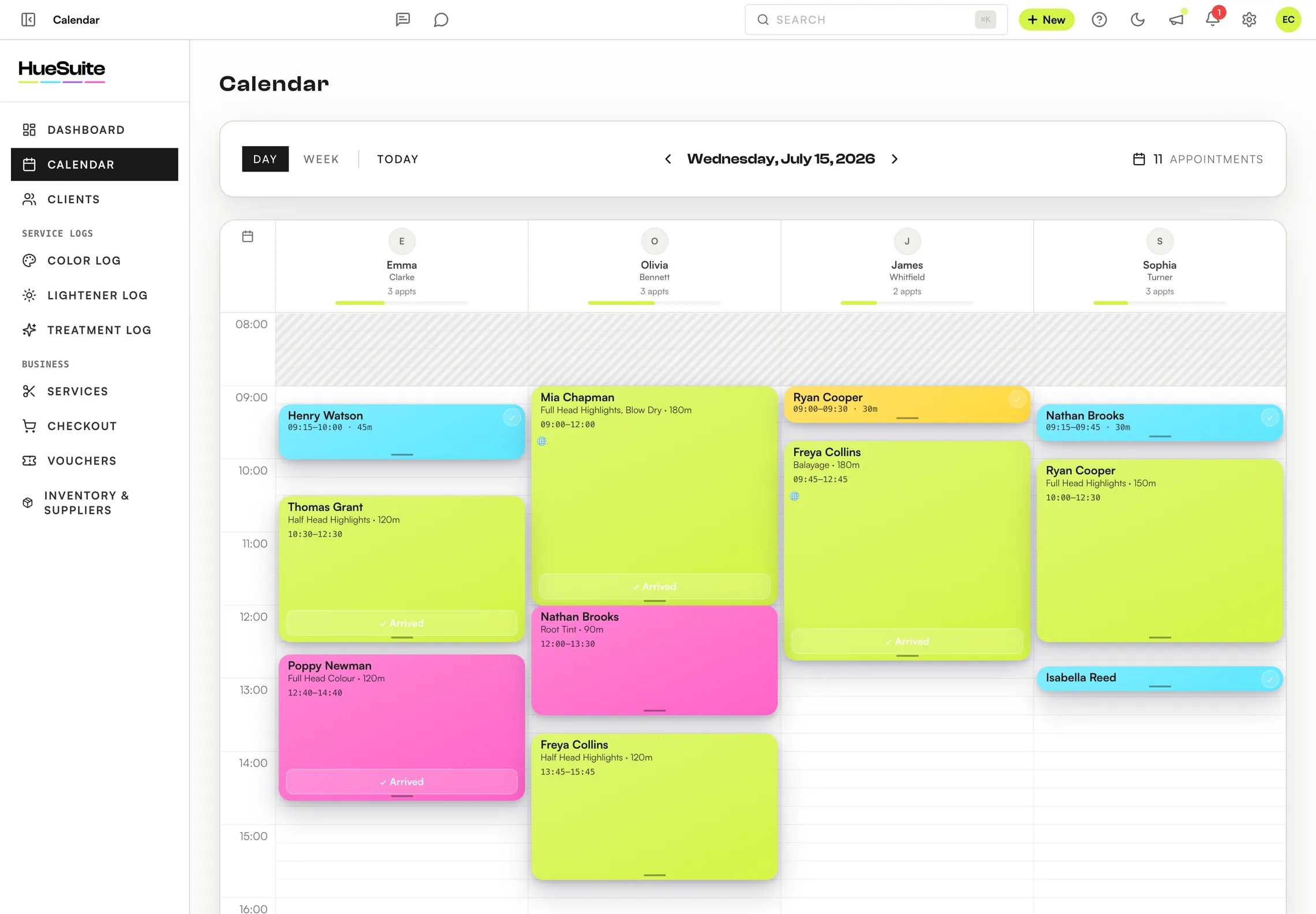
Appointment statuses
- Pending
- An online booking waiting for you to confirm.
- Confirmed
- Booked and confirmed.
- Arrived
- The client is in the salon.
- Completed
- Done and checked out.
- Cancelled / Late Cancelled
- Cancelled in time, or inside your cancellation window.
- No-Show
- The client didn't come.
Good to know
- With several shops, filter the calendar by location.
- Auto-notify on reschedule is in Settings → Reminders & Notifications → Notifications.
Plans: Available on Link, Pro and the free trial. Team members need the Edit Appointments permission to change bookings.
Still stuck? Email support@huesuite.eu or call +357 99 924 847 — a real person answers.