How to check out a client
Checkout takes a client from finished appointment to paid in a few taps, with services, products, tips and vouchers in one cart.
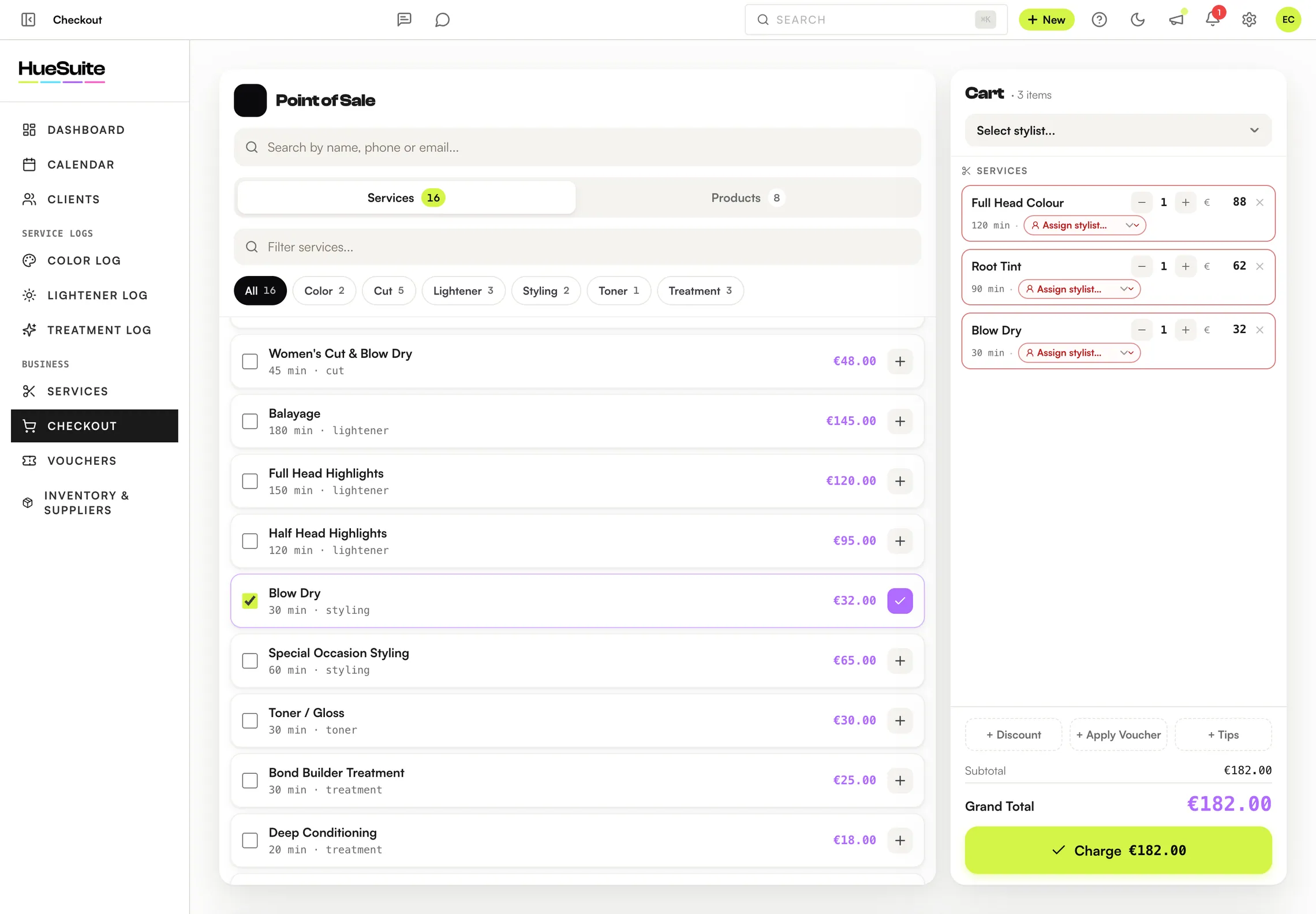
Where to find it Checkout, in the sidebar — or Checkout from an appointment's Quick Actions
Step by step
- Click the appointment and choose Checkout, or open Checkout and search the client.
- Check the services and assign each to its stylist. Add retail items from Products.
- If needed, add a Discount, Apply Voucher, or Tips — per stylist or split equally.
- Click Charge and choose Card, Cash (change is worked out for you) or Split (cash plus card).
- Click Complete sale. The receipt prints automatically, and if the client has an email address you can Send Receipt via Email.
Good to know
- Refunds: the owner opens Reports → Receipts, finds the receipt and clicks Refund — full or partial. Reprint is in the same place.
- Choose the receipt paper size (80 mm, 58 mm or A4) in Settings → Payments.
Plans: Available on Link, Pro and the free trial.
Still stuck? Email support@huesuite.eu or call +357 99 924 847 — a real person answers.